
 |
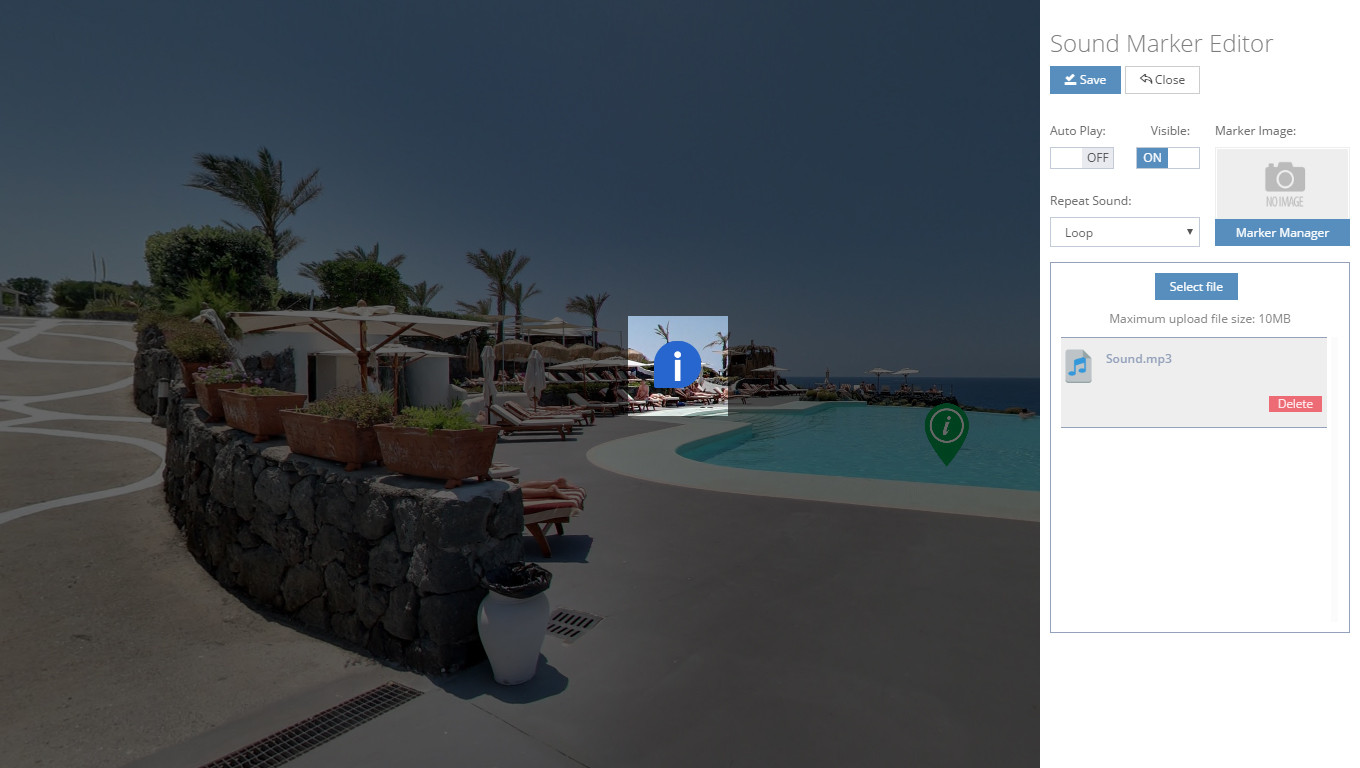
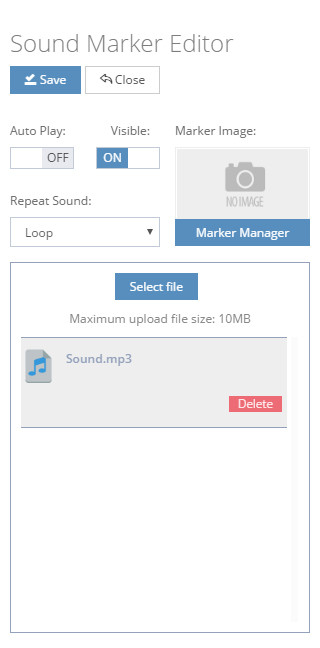
Hello, In this tutorial we will show you how to create a sound marker. Sound marker enables mp3 based music or sound on your virtual tour or panoramic views. For example, restaurant owner wants a play Jazz music on his restaurant virtual tour, the person who build his virtual tour creator should use this marker to solve this problem. Now I will explain everything related its option. Auto Play - If you want to play your uploaded sound automatically when your virtual tour loaded, you should make this option "ON". Visible - Some users don't want to show sound marker visually. Then make it "OFF" to solve it. But if you enable it, its clicking method have play and pause sound ability. Marker image - In this box, you can select or upload your sound marker image. Repeat Sound - This is repeating option. With this option, you can repeat your sound after its finished. Sound File List - In this section, you can upload your sounds. Once every mucis and sounds are uploaded successfully, it will be played by one by one. |